
How To Install HP Printer On Computer & Smartphone (Easy Steps)

To learn ‘How to install HP Printer’, continue reading this step-by-step guide: Installing HP printer software and drivers is crucial because it enables your operating system to communicate with the printer, allowing you to print, scan, copy documents, and utilize all the printer’s features.
For HP printers, the HP Smart app is the recommended software for setup, printing, scanning, and managing your printer. It also helps to secure your printer, especially for wireless connections, preventing unauthorized access.
Note: It’s essential to download the correct software for your specific HP Printer Model and operating system to ensure proper functionality.
How to Install HP Printer on Windows?
You can do so with the help of the following easy steps:
Step 1: Connect Your Printer to a Network
Turn on both your printer and the computer.
Decide whether you want to connect your printer with USB or Wi-Fi.
USB: If you're going with USB, connect the square end of the cable to the printer and the wide, flat end to the computer. Windows detects the printer through the new connection.
Wi-Fi: If you're going with the Wi-Fi option, ensure the printer and your system are added to the same wireless network.
Wireless Setup Wizard: Alternatively, use the Wireless Setup Wizard on your printer’s control panel. Select it, and follow the directions to connect the printer.
Wi-Fi Protected Setup: If your device supports it, you can also use Wi-Fi Protected Setup, or WPS, to connect wirelessly instead of using the Wireless Setup Wizard. To do this, follow these steps:
Press and hold the Wireless button on the printer control panel.
When the wireless light starts blinking, release the button.
Within two minutes, press and release the WPS button on your wireless router.
Then, wait for up to two minutes while the printer and the router establish a network connection.
Step 2: Install Printer Driver Using Add Printer Wizard
In Windows, search for an open Control Panel.
Select Devices and Printers and then click Add a printer.
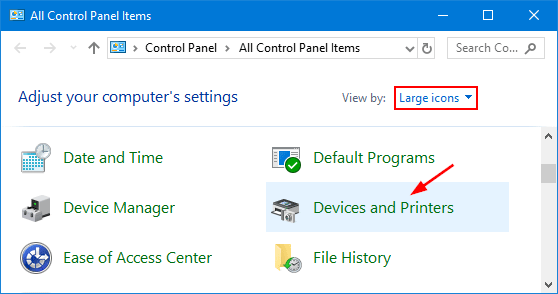
Select your printer when choosing a device or printer to add to this PC window.
Click on the Next button, and perform the steps displayed on your window to install the driver.
Sometimes, when you go to add a printer, the printer may not be listed.
If your printer is not on the list, click the printer that I want isn't listed.
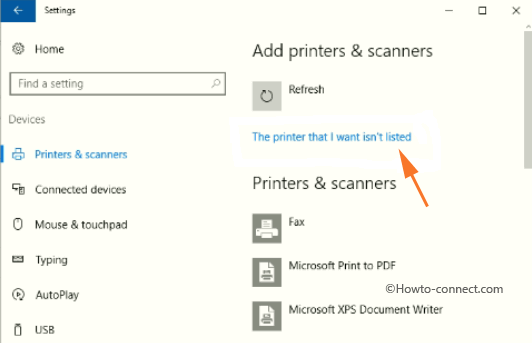
Then, follow the commands to install the printer manually.
Step 3: Print a Document
Printing a document ensures that the printer driver is installed and working properly.
If the document prints correctly, your printer is ready to use and print.
Troubleshooting Steps
If you're facing any issues while installing the printer, try these steps:
Unplug the printer and computer, wait for a few seconds, then plug them back in and restart them.
Make sure the USB cable is perfectly connected to both ends of the printer and computer, and try using a different USB cable.
Make sure your printer and the operating system are on the same network.
Try Uninstalling and Reinstalling Software: Go to Devices and Printers in Windows, select your printer, and choose "Remove Device". Then, download and install the latest printer software from the HP website.
You can also try using the HP Print and Scan Doctor to find and fix issues automatically.
Check the printer’s status on your computer or smartphone to ensure it is online and ready to print.
Run Printer Troubleshooter: Go to Settings and then select Update & Security. Then click on the troubleshooting option. Check for additional troubleshooters and select "Printer."
Make sure the printer is compatible with your operating system while ensuring that you have the latest drivers installed.
If the printer is not printing, check for any paper jams or ensure the ink/toner cartridges are correctly installed and have enough ink/toner.
How to Install HP Printer on Android Device
To install the printer on an Android device, follow the steps given below:
Step 1: Download the HP Smart App
Initially, open the Play Store on your smartphone.
Search for "HP Smart" and download the app.
Install the app on your device.
Step 2: Prepare Your Printer
Make sure your printer is powered on and connected to your home Wi-Fi network.
If your printer has a touchscreen, access the network settings on the printer and enable Wi-Fi setup mode.
Step 3: Connect Your Phone to Printer
Open the HP Smart app on your Android phone.
If prompted, agree to the terms and conditions.
Follow the on-screen instructions to set up a new printer or add an existing printer to the app.
You may need to enter your Wi-Fi password or scan a QR code displayed on the printer's control panel.
Once the connection is confirmed, you can print from your phone to the printer.
Step 4: Print From Your Phone
Open the app or document you want to print.
Tap the Menu (usually three dots) and select "Print".
Select the name of your printer from the list of available printers.
Adjust any print settings as needed.
Tap "Print" to start the printing process.
For this, you first need to enable your Wi-Fi Direct:
On the printer’s control panel, enable Wi-Fi Direct from the setup menu.
Then, touch the setup icon to turn on Wi-Fi Direct.
On your computer or mobile device, go to your Wi-Fi settings and find a network name that starts with "HP-Print-xx[printer model name].
Select the printer's Wi-Fi Direct network and enter the password if prompted.
Download and install the HP Smart app. Next, the app will guide you through the instructions for adding your printer.
Here are the steps to install the driver for your printer:
Go to the HP support website.
Now, click on the “Software and driver downloads” section.
Find the model number on your printer or the original packaging.
Input your printer’s name in the search box.
Select your printer from the search results.
Choose the appropriate operating system (Windows, Mac, etc).
Review the available driver options, such as the full software solution or the basic driver, and download the appropriate one for your needs.
Open the file and perform the steps displayed on your screen.
Learn How to find your printer's IP address, you can do the following steps:
Go to the network or wireless settings menu on your printer's control panel.
Print a network configuration page, as many printers have an option to do so, which will display the printer's IP address.
Note: Some printers display the IP address directly on the control panel.
 • Jan 19, 2026
How To Add Canon Printer To Windows: A Detailed Guide

 • Oct 13, 2025
How To Scan From Brother Printer To Computer: Full Guide
• Sep 25, 2025How To Fix A Canon Printer Not Printing? (Tutorial Steps)
• Jan 19, 2026How To Add Canon Printer To Windows: A Detailed Guide
• Oct 13, 2025How To Scan From Brother Printer To Computer: Full Guide
• Sep 25, 2025How To Fix A Canon Printer Not Printing? (Tutorial Steps)
 • Sep 05, 2025