
How Do I Connect My Epson Printer To My Computer? (Full Guide)

Epson printers are famous for their exceptional high-quality photo printing capabilities, which photographers and artists favor for their ability to reproduce detailed images with accurate colors. They often utilize advanced printhead technology, producing sharp text and graphics, even at high printing speeds.
Connecting an Epson printer to a computer offers several advantages. You can print documents, photos, and other files from any application on your computer, such as word processors, web browsers, or image editors. Epson Connect allows you to print and scan documents directly to and from cloud services, offering convenient and efficient printing and scanning services from anywhere.
Below is a quick guide on how do I connect my Epson printer to my computer.
How to Download Epson Printer Driver on Computer?
If you want to learn how to connect a printer to your computer, you must first know how to download a suitable printer driver. Follow the instructions given below:
- Look for the model number printed on the printer or found on your purchase receipt or box.
- After that, go to the Epson support website.
- Then, use the search bar or browse the product list to find your specific printer model.
- Once you've found your printer model, look for a section labeled "Drivers & Utilities," "Downloads," or similar.
- Choose your operating system (Windows, macOS, etc.) from the available options.
- When the printer driver option appears on your screen, click the Download option.
- Download the driver package for your printer model and operating system.
- After that, double-click the downloaded file and follow the steps displayed on your screen to install the printer driver.
How Do I Connect My Epson Printer to My Computer?
You can follow this guide to complete the printer setup on a Windows PC:
- Prepare your printer.
- Download and install Epson Connect Printer Setup Utility.
- Start the Registration process:

- Then, launch it on your computer and agree with the End-User License Agreement.
- After that, click on the Next option.
- Choose the option Install and then click on Finish.
- Now, choose the name of your printer model.
- Click on the Next option.
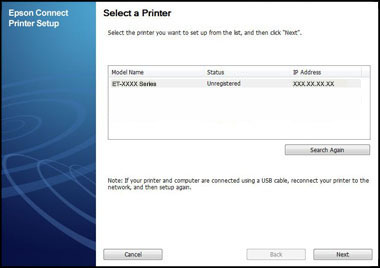
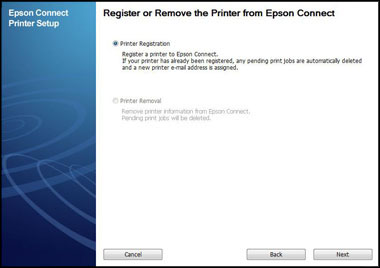
- Register your printer.
- Tap on the printer registration button and click on Next.
- Now, click Agree, and then choose Next.

- Now, choose the OK option when the Register a printer to Epson Connect message appears on the screen.
When you're done with your registration, a setup information sheet will be printed from the registered printer, and a notification email will be sent to your email address. Now, you can use the Epson Connect service.
How to Create an Epson Connect Account?
Follow the below steps to create an Epson account:
- To create a new account:
- Registering a New Product with an Existing Account:
- If you already have an account, select the "I already have an account" option on the Epson Connect website or app.
- Activate scan to cloud and remote print (optional).
How to Create an Epson Connect Account
To register an additional printer in Windows, follow these steps:
Step 1: Access Printer Settings
Windows 10/11
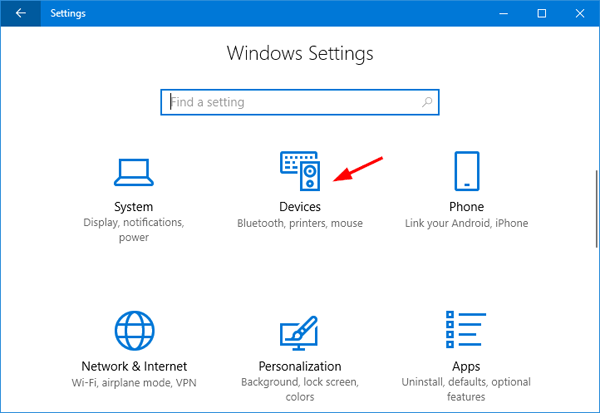
- Click the Start menu button, then select "Settings."
- Go to "Devices."
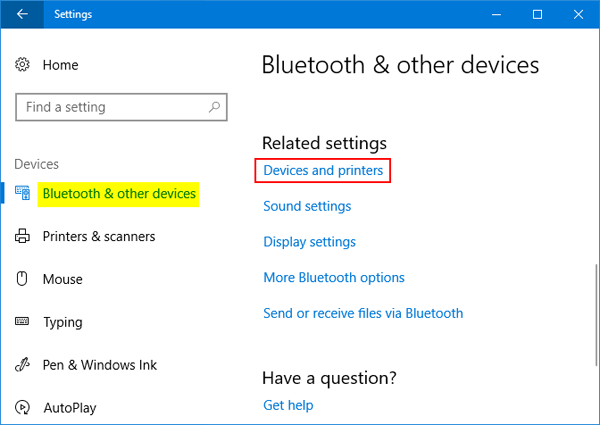
- Then, "Printers & scanners."
Windows 8
- Press the Windows key + X key and select "control panel."
- Click on "device and printers."
Windows 7
- Navigate to the Start menu and choose "Devices and Printers."
Step 2: Add a Printer
- Click "Add a printer or scanner."
- Your Windows will search for available printers on the network.
- If you found your printer, select it and click "Add device."
- If your printer does not appear automatically, select "The printer I want isn't listed" and follow the given steps.
- You can also choose "Add a local or network printer with manual settings.”
To troubleshoot a printer not
connecting to your PC, try restarting both the printer and your computer,
checking the connection cables or wireless settings, uninstalling and
reinstalling the printer, and verifying your printer's connection if it's
connected to the correct Wi-Fi network. Wi-Fi is enabled, so you can check the
printer's display for error messages or status indicators and ensure you have
installed the latest printer drivers. If the issue persists, try connecting
from a different computer.
If your wirelessly connected printer
isn't printing, check its Wi-Fi status, ensure it's connected to the correct
network, and try restarting the printer, router, and computer. Make sure the
printer is connected to the same Wi-Fi network as the device you're trying to
print from. Outdated or corrupted printer drivers can cause printing problems.
If updating the driver doesn't resolve the issue, try uninstalling and
reinstalling the driver. And if you're using a printer app, ensure it's up to
date.
An outdated or corrupted printer
driver can cause communication problems between your computer and the printer.
So, updating your printer driver to the latest version from the printer
manufacturer's website is better. Make sure you have installed the correct
driver specified to your printer model. Sometimes, other software or drivers
can conflict with your printer driver. A print job might be stuck in the print
queue, preventing new jobs from being processed. The printer might have an
error, such as a paper jam, low ink, or a hardware malfunction.
 • Jan 19, 2026
How To Add Canon Printer To Windows: A Detailed Guide

 • Oct 13, 2025
How To Scan From Brother Printer To Computer: Full Guide
• Sep 25, 2025How To Fix A Canon Printer Not Printing? (Tutorial Steps)
• Jan 19, 2026How To Add Canon Printer To Windows: A Detailed Guide
• Oct 13, 2025How To Scan From Brother Printer To Computer: Full Guide
• Sep 25, 2025